


Photo Recover - Easy Restore
3.853.00 Reviews
App Specs
- Version
- 1.1
- Updated On
- License
- Free
- Downloads
- 100,000+
- Developer
- Lazy Project
- Categories
- Tools
- Platform
- Android
Screenshots
 Analysis by AppCompare
Deleting a photo by mistake is one of those small phone disasters that feels much bigger when the image matters. Photo Recover - Easy Restore takes a straightforward approach: it is a free Tools app from Lazy Project designed to look for recently removed photos and videos on an Android device, with processing handled locally for a more privacy-conscious workflow. I tested it with the mindset I would use on my own phone: recover what is realistically recoverable, avoid making the situation worse, and understand where a recovery tool stops being useful.
My overall impression is practical rather than magical. Photo Recover - Easy Restore is most useful when you act quickly and keep your expectations realistic. It can be a convenient first attempt after an accidental deletion, especially if you do not want to upload personal images to an online service. It is less convincing as a guarantee for old files, permanently erased media, or storage that has already been heavily reused.
How I use Photo Recover - Easy Restore after an accidental deletion
The best baseline workflow begins before opening any recovery app. Once I notice that a photo or video is missing, I stop taking new pictures, avoid downloading large files, and do not install several recovery tools one after another. New data can occupy the same storage space that the deleted file once used, reducing the chance of a clean recovery. That habit matters more than repeatedly pressing a scan button.
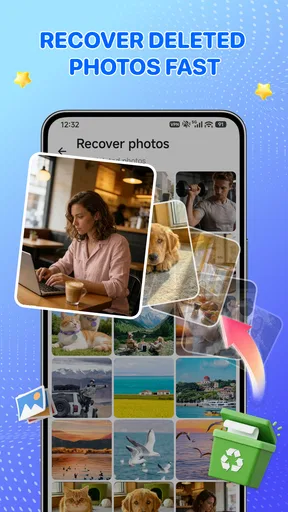
I then open Photo Recover - Easy Restore and let it search the phone. The app’s purpose is easy to understand: find recoverable media, show me the results, and give me a chance to restore the items I recognize. I prefer this focused approach to tools that bury a simple recovery task under unrelated cleaners, boosters, or file-management features.
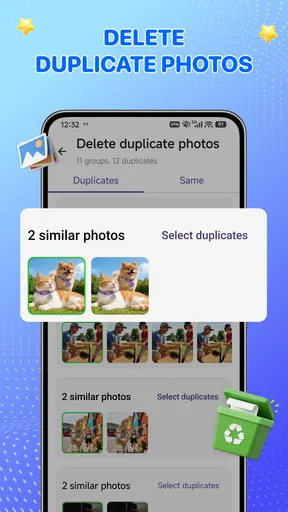
When the results appear, I do not restore everything automatically. I check thumbnails, compare dimensions where that information is available, and look for duplicates. Recovery scans can surface several versions of a similar image, including thumbnails or cached copies, so selecting carefully prevents the restored folder from becoming a confusing pile of near-identical files.
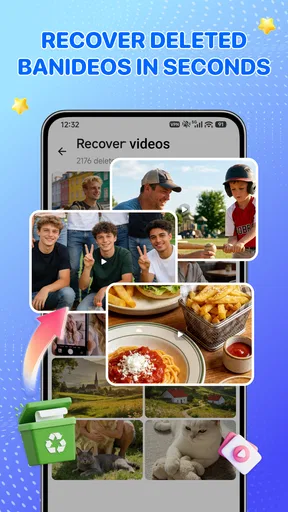
For a realistic example, imagine deleting a short video from a family gathering while clearing space. My first move would be to stop recording more clips, run the scan, and preview the candidates. If the correct video appears, I would restore it and immediately copy it to another safe location. I would not assume that seeing a preview means the original quality is guaranteed; a visible thumbnail can be useful evidence that something remains, but it is not the same as a complete source file.
The local-processing approach is particularly reassuring for private images. I would rather begin with a tool that works on the phone than send personal photos to an unfamiliar website. That does not make the app a substitute for a backup system, though. Local processing helps with the privacy decision, while the actual recovery result still depends on how the device handled the deleted storage.
Worth Reading Before You Choose

EA SPORTS FC Mobile 26 Is a Bigger Football Game, but It Takes Time

Flipboard Shows What News Apps Must Do Beyond the Feed

Switching to Android Auto Means Rethinking Your Driving Routine

Google Calendar Makes a Crowded Week Easier to Manage

Ludo King Makes the Most of the Minutes Between Plans

Baby Panda World Brings Quick Play to Modern Phones, but Its Game Library Feels Busy
One practical question is whether the app can recover anything at all after deletion. Sometimes it can find a usable item, and sometimes it cannot. The result depends on the phone, the storage system, the time since deletion, and whether the space has been reused. I treat the app as a sensible first attempt, not as proof that every erased file remains available.
Another question is where restored media goes. I check the app’s on-screen confirmation and then use the phone’s gallery or file manager to verify the result. A successful recovery is not complete until I can open the image or video outside the recovery screen. This extra check also reveals whether the file is full-size, playable, and saved somewhere I can find later.
Settings and permissions I would check before scanning
There is no advantage in rushing through the first screen. I read the permission prompts and grant only what is needed for the recovery task. Since this is a media-recovery tool, access to photos, videos, or device storage may be central to its operation, but I still want to see exactly what Android is asking me to approve. A careful permission check is a better privacy habit than assuming every request is harmless.
I also check Android’s system settings if the scan seems incomplete. On newer devices, media access can be more tightly controlled, and a tool may not be able to inspect every location unless the relevant access has been granted. If the app shows no useful results, I first revisit those permissions rather than concluding that every deleted file is gone.
The minimum operating-system requirement is Android 8.0, which makes the app accessible to many older phones while still leaving out devices running earlier software. The current release is version 1.1. I would keep the app updated through the official app store, but I would avoid installing an update in the middle of an urgent recovery attempt if the phone is already in a delicate state. My priority would be preserving the storage environment first.
Because the app is rated for Everyone, it is approachable for a broad audience, including someone who is not comfortable with technical recovery tools. That does not mean the task is risk-free or that every screen can be ignored. A beginner should still avoid deleting scan results, clearing storage, or using a phone-cleaning feature at the same time as recovery.
One setting-related trade-off is convenience versus control. A simple scan is easier for most people, but experienced users should pay attention to filters, sorting options, or media-type choices if the interface presents them. Searching only for the missing kind of file can make the results easier to inspect. If I am looking for one video, I would not want to sift through hundreds of unrelated images unless the app requires a broad scan.
I would also keep enough free space available for the restored file. Recovery tools need room to save output, and a phone that is almost full can create a new problem after the original deletion. If necessary, I would move existing, nonessential files to a computer or another trusted destination before restoring anything important.
Faster recovery patterns that reduce mistakes
The quickest reliable pattern is simple: stop writing new data, scan once, inspect carefully, restore only the needed items, and verify them elsewhere. Repeating scans without changing anything usually does not create new information. What does help is changing the way I inspect the results, such as narrowing the media type or checking a different date range when those controls are available.
I would also avoid taking screenshots of missing photos as a substitute for recovery. A screenshot may preserve a visual reminder, but it normally does not restore the original file, resolution, metadata, or video quality. If Photo Recover - Easy Restore presents a candidate, I choose the candidate itself rather than creating another copy of a preview.
A useful habit is to restore one or two files first instead of selecting a large batch. This tells me whether the output is complete and whether the destination is accessible. If the first restored video plays correctly, I can proceed with more confidence. If it is corrupted or unusually small, I have not wasted time processing an entire group of questionable results.
For photos, I compare the recovered image with any remaining copy in messaging apps, cloud galleries, or social posts. Those other locations are not necessarily recovery sources for the original, but they can help me identify the correct image when several similar thumbnails appear. This is especially helpful after a burst of nearly identical shots.
For videos, I check playback from beginning to end rather than assuming that a file opening means it is intact. A damaged video may display a first frame and then stop. If the recovered clip matters, I copy it immediately and keep the original recovered output untouched while making any edits to a duplicate.
The app has passed one hundred thousand installs and holds a 3.8 average from around three hundred fifty ratings, so it has attracted a meaningful group of Android users without presenting itself as an enterprise-grade forensic solution. I read that reception as a reason to try it for ordinary accidental deletions, not as a promise of consistent results on every phone.
Its free price also changes how I evaluate it. There is little financial risk in trying it as a first step, but free does not mean that time is unlimited. If the scan is slow, produces mostly unusable fragments, or cannot access the relevant storage, I would stop rather than repeatedly hoping for a different outcome. At that point, a backup, the phone’s built-in trash, or a professional recovery service may be more appropriate.
Where the app reaches its limits
The most important limitation is that deletion is not always reversible. Modern phones may remove access to a file quickly, and later activity can overwrite the space. Photo Recover - Easy Restore cannot recreate data that no longer exists on the device. This is why the app is strongest as an immediate response tool and weakest as a last-minute solution for media deleted long ago.
I would check the phone’s built-in gallery trash or recently deleted folder before relying on deeper recovery. Those features often preserve an intact original for a limited period, while a recovery scanner may find only remnants or cached versions. In that situation, the built-in option is usually cleaner because it keeps the original filename, quality, and organization more reliably.
Cloud backups are another alternative when they are already enabled. A cloud gallery can be better for recovering an older image or restoring a whole collection, while this app is more convenient when I want to search the device locally and avoid uploading anything new. The trade-off is that cloud recovery depends on prior synchronization and account access; Photo Recover - Easy Restore is aimed at the phone in front of me.
Computer-based recovery software can offer more controls, but it is usually less friendly and may require connecting the device, enabling special access, or understanding storage terminology. I would consider that route for high-value files after the simple options fail, not for every accidental screenshot. The app’s advantage is immediacy: it lets a regular phone user make a sensible first attempt without building a technical recovery setup.
I would skip this app if I need guaranteed forensic recovery, a documented chain of custody, or a complete restoration of a severely damaged device. I would also skip it as a replacement for automatic backups. A recovery tool is reactive; a backup is preventive. The two solve different problems, and no scan can compensate for a missing backup after storage has been overwritten.
Privacy deserves a balanced reading too. Local processing is a strong reason to prefer this app over an unknown web uploader, particularly for identity documents, family pictures, or sensitive videos. Still, I would review Android’s permission controls and avoid granting unrelated access. Privacy is not only about where processing happens; it is also about limiting what an app can see and checking where recovered copies are stored.
There is also a practical organizational limit. Restoring files without a naming or folder plan can make future cleanup harder. After recovery, I rename important items, place them in a clearly labeled folder, and create a second copy. That workflow turns a successful scan into a useful result instead of leaving the recovered media hidden among temporary files.
My verdict for careful everyday use
After using Photo Recover - Easy Restore as a focused recovery utility, I see it as a reasonable first stop for Android users who have just deleted a photo or video and want a local, uncomplicated attempt at restoration. Its free access, Everyone rating, and support for Android 8.0 make it approachable, while Lazy Project keeps the product centered on one understandable job rather than surrounding it with unnecessary features.
The app is most convincing when paired with disciplined habits: stop using the phone, check the built-in trash, scan promptly, inspect candidates, restore a small test group, and verify every important result. Those steps are more valuable than treating the app like a magic undo button. They also answer the questions I would have before installing it: whether it is worth trying, what to do first, how to protect privacy, and when to move on to another recovery method.
My recommendation is therefore conditional but positive. If an accidental deletion happened recently and the files are stored locally, I would try it before paying for a more complicated tool. If the media is old, the phone has been heavily used since deletion, or the files are irreplaceable, I would combine this attempt with the phone’s trash, existing backups, and—if necessary—a specialist service. Use Photo Recover - Easy Restore as a fast recovery opportunity, not as a promise that deleted storage can always be brought back.
For ordinary users, that distinction makes the app easier to trust. It does not need exaggerated claims to be useful. It simply gives me a privacy-minded, low-cost way to check whether a recent deletion is still recoverable, and its value is highest when I act quickly and handle the recovered files carefully.
Pros
- Simple interface makes photo recovery easy for beginners.
- Can help find recently deleted images in supported storage locations.
- Previewing files before recovery helps avoid restoring unwanted photos.
- Useful for quickly checking whether recoverable images are still available.
- Lightweight design should work smoothly on many Android devices.
Cons
- Recovery success depends heavily on how long ago files were deleted.
- Deep scans may take time and can use noticeable battery power.
- Some recovered images may have missing details or reduced quality.
- Results can include duplicates
- cached images
- and unrelated media files.
- Full recovery features may require in-app purchases or contain advertisements.
FAQs for Photo Recover - Easy Restore
What is Photo Recover - Easy Restore, and what can it recover?
Photo Recover - Easy Restore is designed to help users find and restore deleted or missing photographs stored on an Android device. Depending on the phone model, storage settings, and how long ago files were removed, it may locate images still present in accessible storage areas or cached locations. It should not be considered a guaranteed recovery tool, especially after a factory reset, permanent deletion, or extensive use of the device afterward.
Does Photo Recover - Easy Restore require root access?
The application may offer basic scanning without root access, which is more convenient for most users but can limit the depth of the search. Root access can sometimes provide broader access to internal storage, although results still depend on whether deleted data has been overwritten. Rooting a phone can also create security, warranty, and stability concerns, so users should carefully review the app’s requirements and avoid changing system permissions unless they understand the risks.
Can it recover photos from an SD card or only from internal storage?
Photo Recover - Easy Restore may be able to scan supported storage locations, including an inserted SD card, but compatibility varies by Android version, card format, device manufacturer, and permission settings. Before starting a scan, check that the card is recognized by the phone and grant only the storage access the app needs. If the missing photos are important, stop saving new files to that storage to reduce the chance of overwriting recoverable data.
Is Photo Recover - Easy Restore free to use, and are there advertisements or in-app purchases?
The availability of features can depend on the version downloaded from the official app store. Some recovery apps provide a free scan while reserving advanced restoration, batch recovery, or unlimited access for a premium plan. Advertisements may also appear during scanning or browsing results. Before confirming a purchase, review the listing, subscription terms, trial conditions, and cancellation instructions so you understand exactly what is included.
Is it safe to use Photo Recover - Easy Restore with personal photos?
Because a recovery tool needs access to stored media, users should treat its permissions and privacy practices seriously. Download Photo Recover - Easy Restore only from a trusted official source, examine the requested permissions, and read the developer’s privacy policy before scanning sensitive images. Avoid granting unrelated access, and remember that recovery results may include private or previously deleted files. If the app requests unusual permissions, consider stopping and investigating first.


